What to capture from a competitor ad and its page
- Save the search query or library filters, advertiser, visible claim and capture date.
- Check whether a directly verified page carries the same promise, conditions and next action.
- Use one observed difference to design a test with your own performance data.
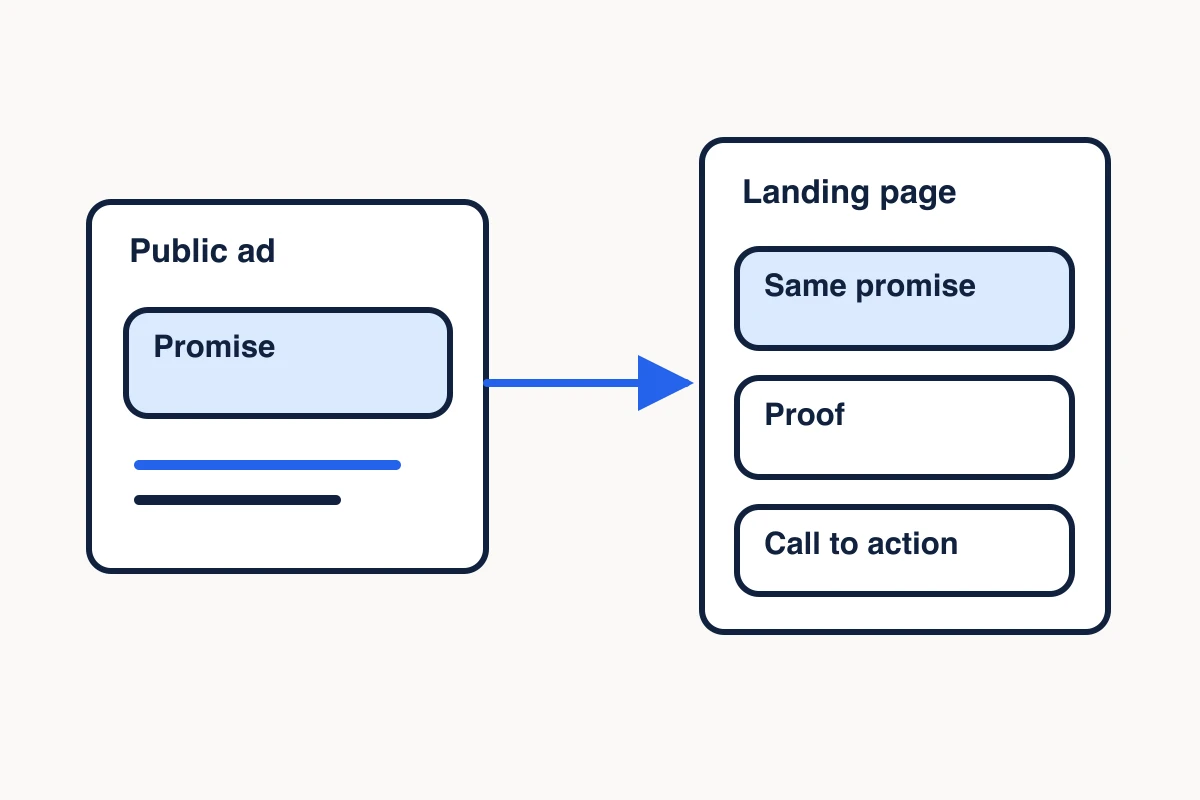
Pick one buyer decision, collect a small set of public ads, then compare each ad’s promise with the public page you can verify. A useful competitor ad research brief shows the observed claim, what the page says about it and one test you can run on your own campaign.
For a paid search brief, the buyer decision might be whether to try an API before committing to a plan. The research starts with visible offers and calls to action, then checks how each public page describes the next step. Preserve the sources so a teammate can repeat the comparison later.
Start with a bounded ad sample
Choose the source based on what you need to observe. Start with a public ad library if you know the advertiser and want examples of its creative. Capture a live search if you need to see what appeared for a particular query. For a web scraping API, choose a query like web scraping API and record the first Google result page, the time, the device and any visible location or personalization settings. Save the entries marked Sponsored and record the portion of the page you inspected. If the inspected view shows no ads, record the empty observation alongside those conditions.
To review creative by advertiser, use the Google Ads Transparency Center and record the advertiser, serving region and date filters. For Facebook or Instagram creative, use the Meta Ad Library and record the country and category. A live search result shows the copy served in that session. A library entry gives you a different source record, with its own filters and availability. Give each source a separate row when you use both.
Build an ad evidence table
Give each observed competitor ad a row. If your brief also covers the wider website, analyze competitor websites against the same offer and proof criteria. Capture the advertiser, displayed domain, headline, description, visible offer, proof claim, call to action and source reference. Keep the offer’s conditions with the offer. If a price starts at a given amount or applies per request, preserve that wording and unit. Mark any clipped text as incomplete.
Add a separate field for your interpretation. A price per URL may be an angle for buyers who want to forecast a budget. A success-rate headline may be an angle for buyers worried about failed requests. Label those as hypotheses about the message. The screenshot or excerpt supports the wording that you saw. A placement alone cannot establish spend, bids, targeting or conversions. Some ad libraries disclose limited fields by region or category. Use those fields only within their published scope, and mark anything you cannot verify as unknown.
Check whether the page carries the promise
Compare the competitor ad’s main promise, conditions and next action with the public page you can verify. Use a direct URL supplied by an ad record or exposed as the destination. Record the requested and final URLs and the date. If you only know the displayed domain, record the destination as unknown and label any homepage you read as a related page. Leave sponsored click routes alone.
Two web scraping API ads and their public pages
On November 7, 2026 at 19:11 UTC, we checked the first page of a personalized desktop Google search for web scraping API. We requested U.S. English results, and Google indicated a Colorado locality. The page showed two ads in one sponsored group. We observed the ads in Chrome and opened the public URLs exposed by the headlines without clicking the ads. The table records those browser observations and direct page reads. Repeat the Google query. Your results may differ.
| Advertiser | Observed ad message | What the direct public page showed | Comparison |
|---|---|---|---|
| Context.dev | The ad claimed a 99.96% scrape success rate and offered a free URL test. | The page offered a free URL test and described HTML, Markdown and JSON output. | The free test carried through. The captured page text did not show the advertised percentage, so the reliability claim remains unverified. |
| Parallel | The visible ad copy advertised $1 per 1,000 URLs and described extraction into Markdown. The captured description ended mid-sentence. | The page repeated the per-URL price and described full Markdown and focused excerpts. | The price and output format carried through in the visible copy. Both are the advertiser’s published statements. |
Keep any missing condition in the brief. When one advertiser emphasizes a reliability claim and another emphasizes unit price, compare the kinds of reassurance the pages provide. Establishing relative performance requires separate evidence. Context.dev public page · Parallel Extract API
Collect public evidence with MCP Scraper
Use MCP Scraper to collect supported Facebook Ad Library records and read selected public pages. For a Google example, start with the sponsored placement you observed in the browser or a record from the Google Ads Transparency Center. Then give MCP Scraper the verified public destination for page extraction. MCP Scraper Docs
- For Facebook Ad Library research, look up the advertiser with the documented advertiser search, then use the advertiser scan to collect available copy, headlines, calls to action and status. When you already have the library ID for a particular ad, use the single-ad lookup.
- Select the public URLs that answer your question. Use the single-page extraction flow and check the result against the source, especially price units, eligibility, primary calls to action and content that appears only after interaction. Keep missing fields marked as unknown until you can verify them.
- Put each claim and page observation in your evidence table with a URL and a date. If you need to use the brief again, save the checked evidence and its source links deliberately in a Memory Vault, then verify you can retrieve the record. How to save scraped research in a Memory Vault
When you have a result listing and need the full offer terms, move from discovery to reading the specific page. Search results vs. page extraction
Check who ran the ad before comparing offers
A keyword match can surface an advertiser that sells to the brand’s audience. In a November 10, 2026 UTC US run, facebook_ad_search returned three advertisers for “Shopify.” Shopify itself did not appear in those three results. One result was wetracked.io, a vendor selling ad tracking for Shopify stores.
We passed its returned page ID, 111821565335833, to facebook_page_intel, kept the US filter, and capped the scan at three ads. The result identified an exact page ID match and returned three video records, all marked inactive. The first two had identical primary text. Keep both ad IDs and count their shared primary text once when comparing copy.
| Meta Ad Library IDs | Copy in the returned records | Fields to verify |
|---|---|---|
| 1949791649221947 and 1301451124611926 | Two records share the same primary text. Both mention a 14-day free trial. | Both marked inactive. Neither returned a CTA field or landing URL. |
| 1366865698168543 | Different primary text with the same trial offer. | Marked inactive. The CTA field says “Learn more.” The landing URL is empty. |
The public wetracked.io homepage independently offered a 14-day trial when checked. Record it as related-page evidence and leave the actual ad destination unknown. The statuses above are from the captured tool response. We could not independently reopen the individual Meta creative. The three records give no measure of current activity, audience, spend or performance.
For your own brief, filter by a verified advertiser ID, group records with identical primary text, and keep each ad ID and its reported status. Download the recorded inputs and field checks.
Verify the exact Meta creative before using its claim
An advertiser ID identifies the page that ran the ad. A Meta Ad Library ID identifies one creative record. Before quoting an ad, take the library ID from the public record, run an exact lookup, and check that the returned ID matches.
On November 10, 2026 UTC, we looked up two Shopify creatives through the public MCP endpoint on MCP Scraper 0.103.9 (recorded results). We called facebook_page_intel once per libraryId with country set to US and maxAds set to 1. Each call returned one Shopify record with the requested ID.
| Meta Ad Library ID | Primary text in response | Landing URL in response | Decision for the brief |
|---|---|---|---|
| 1124861510230110 | Missing | Missing | Reopen the source before quoting the ad. |
| 1751396829421229 | Present | Missing | Compare the returned copy with the source before citing it. |
Reopen the first Meta record or the second Meta record to check the creative itself. A missing field describes our captured response. The ad may still show copy or a destination in the library. Inspect the recorded Meta lookup fields.
Save a checked ad lookup for the next brief
If your team will reuse the lookup in another competitor brief, save the dated Meta Ad Library record in Memory Vault. Keep the creative ID, source link and returned fields in the source note. The Shopify captures omitted the landing URLs. Record the decision to hold the destination claim in a separate finding note. Reopen the saved note to check which fields the lookup returned. If the library later confirms a destination, extract the page separately and record its headline, offer terms and next action as a new observation.
Check a Google ad when advertiser search returns zero
A zero-result advertiser search can miss creatives you can find by domain. In our US check, MCP Scraper’s Google Ads Transparency search returned zero advertisers for salesforce.com. We passed the same domain directly to google_ads_page_intel and requested up to three creatives. It returned two text ads and one video ad from Salesforce, Inc. Open the public Google domain search
The Salesforce public homepage is related-page evidence. It also offered a free trial, and the ad’s actual destination remains unverified. Open the exact creative detail and check the advertiser, region, format and last-shown date even if the ad preview is blank. Google identified Salesforce, Inc. as the advertiser and showed the ad in the United States. The record lists a text format and November 9, 2026 as the last-shown date. The MCP Scraper row left last-shown and landing domain empty. Check the offer and destination separately, and mark either field unverified if you can’t see it on recheck. Open the matched Google creative
| Evidence | What to put in the brief |
|---|---|
| Original Google creative preview | The original preview promoted a unified CRM suite and invited readers to start a free trial. The later detail view showed the creative metadata, while the offer and destination remained unverified in that view. |
| Salesforce public homepage | The separately opened public page also offers a free trial. Record it as related-page evidence. |
| Decision | Mark the offer as consistent across the two observed sources. Verify the actual ad destination before scoring ad-to-page continuity. |
If you’ll reuse the brief, keep the creative and public page links as separate sources. Record the US filter, the date you checked each source, and the fields that still need verification. Open the Salesforce public homepage
Recheck a competitor ad before reusing the brief
When a client is about to reuse a campaign brief, repeat the ad lookup with the same domain, region and result limit. Keep the old capture and add a new row with the date you checked it. Compare the exact creative link, visible offer and last-shown date.
Download the competitor ad recheck worksheet (CSV). The Salesforce example has one observed row and one blank follow-up row.
If the creative is missing from the limited lookup, open its original Google Ads Transparency Center link. Record whether the creative is still visible there. If you cannot confirm it, mark the follow-up as unverified. If the offer changed, decide whether that changes the test you proposed for your own campaign.
Keep both dated captures in Memory Vault when the team needs to reopen the sources for a later decision.
Turn one observation into a test
Use competitor ad research to choose one change you can make and measure on your own campaign. If several observed ads make pricing easy to evaluate and your own approved pricing has a clear unit, try explaining that unit beside the main call to action on your landing page.
Hold the offer and call to action steady. Compare your existing page with a version that adds the pricing explanation. Pick an outcome your team can measure, such as qualified signups per eligible visit, and a guardrail, such as the share of all signups that meet your qualification rule. Define the decision rule before the test starts. Keep the original ad evidence beside the hypothesis so the team can see why it chose that test.
Observation: The November 7, 2026 desktop capture for “web scraping api” showed a clipped Parallel ad. The ad and its Extract API page both stated a price per URL.
Hypothesis: Showing our approved pricing unit near the trial link may help qualified visitors decide.
Test: Add the unit to one version of our page. Keep the offer and trial link fixed.
Measure: Qualified signups divided by eligible visits for each version.
Guardrail: Share of all signups that meet the same qualification rule.
Result: Pending. The competitor’s conversion data was unavailable.
Open the page extraction demo and select Formats to see a sample in HTML, JSON and Markdown. Use your own verified public destination to check whether its ad promise appears in the extracted page.
Sources
- Google Ads Transparency Center.https://adstransparency.google.com/
- Meta Ad Library.https://business.facebook.com/ads/library
- Google query to repeat.https://www.google.com/search?q=web+scraping+api&hl=en&gl=us
- Context.dev public page.https://www.context.dev/lp/web-scraping-api
- Parallel Extract API.https://parallel.ai/products/extract
- Google Ads transparency disclosures by location.https://support.google.com/adspolicy/answer/13733850?hl=en
Try one Meta creative lookup
Start with a public ad library ID. Use the sample request to check that the returned ID matches, then record any missing fields before adding the ad to your brief.
Open the Meta lookup walkthrough